

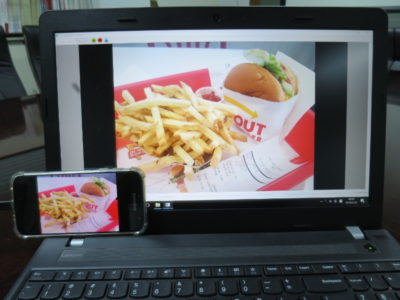
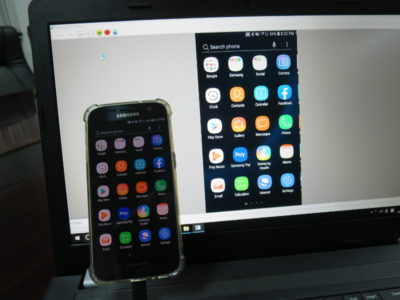
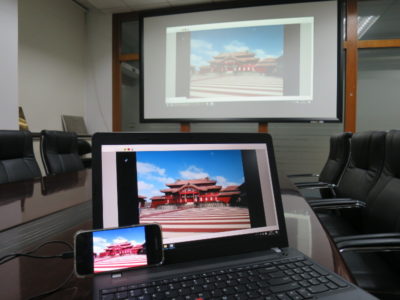
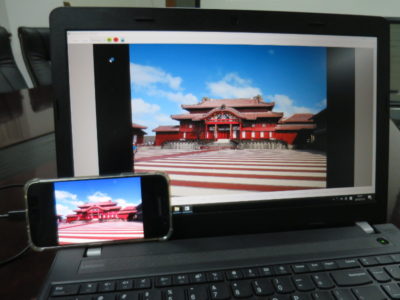
Overview
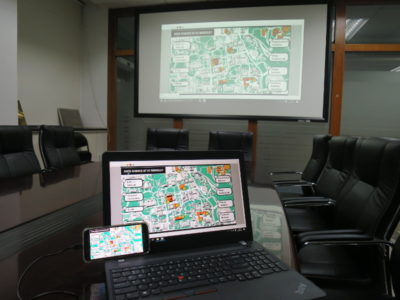
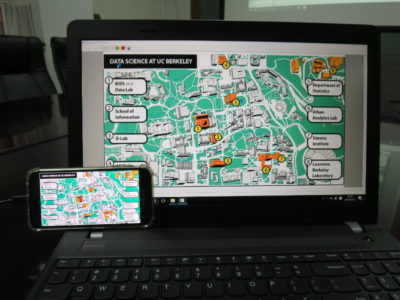
ScreenOnPC allows users to (1) mirror an Android phone’s screen on a PC, (2) control the phone from the PC, and (3) copy/paste text and transfer files between the phone and the PC.
ScreenOnPC consists of two software components: a server app that runs on an Android phone, and a viewer app that runs on a viewer device. The viewer device can be a computer running Windows, macOS or Linux. It can also be another Android phone.
Features
- Easy WiFi connection
- Support USB connection on Windows
- Operate a phone using a mouse, keyboard or touch screen from the viewer device
- Transfer files between the phone and viewer device
- Copy and paste text between the phone and viewer device
- Use a PC keyboard as an external keyboard for the Android phone
- Fast image updates and smooth video playback
- Adjustable image size
- Support secured, encrypted connections
- Viewer app available for Windows, macOS, Linux computers, and Android phones
System Requirements
- Smartphone: Android 7.0 or higher
- Windows PC: 64-bit Windows 7 or higher
- macOS PC: 64-bit macOS 10.7 or higher
- Linux PC: 64-bit Linux with glibc 2.23 or higher (e.g., Ubuntu 16 or higher, Debian 9 or higher)
Install ScreenOnPC Server App on an Android Phone
- ScreenOnPC Lite (free version): https://play.google.com/store/apps/details?id=com.quaray.screenonpc.lite
- ScreenOnPC HD (paid version, $4.99): https://play.google.com/store/apps/details?id=com.quaray.screenonpc.hd
Install ScreenOnPC Viewer App on a PC or an Android Phone
- Windows and macOS: Download ScreenOnPC Viewer
- Linux: Linux Support of ScreenOnPC
- Android: Android version of ScreenOnPC Viewer
Steps to run ScreenOnPC using WiFi connection
- On the phone: Open the ScreenOnPC Server app, and select WiFi mode.
- On the viewer device: Open the ScreenOnPC Viewer and select WiFi mode. Go to [Help]->[Settings], configure the [Phone IP Address] and [Passcode] to match the values shown on the phone.
- On the phone: Tap the [Start] button, and grant the required permissions.
- On the viewer device: Click the [Start] button.
Steps to run ScreenOnPC using USB connection
- Connect the phone and a Windows PC with a USB cable.
- On the phone: Open the ScreenOnPC Server app and select USB mode. Choose either ADB or MTP as the transfer method, and enable corresponding settings.
- On the phone: Tap the [Start] button, and grant the required permissions.
- On the PC: Open ScreenOnPC Viewer program, select USB mode, choose transfer method and click the [Start] button.
Demo Video
FAQ
Contact
Have questions? Email us at info@quaray.com